
Download the nuvem.works app.
The access catalog, native on your computer, with sessions in their own window. The browser keeps working with nothing to install.
Windows
Current version 0.7.2 · Windows 10/11, 64-bit
Download for Windows (.msi)Or with winget
Coming soon, while the package goes through Microsoft's moderation.
- 1
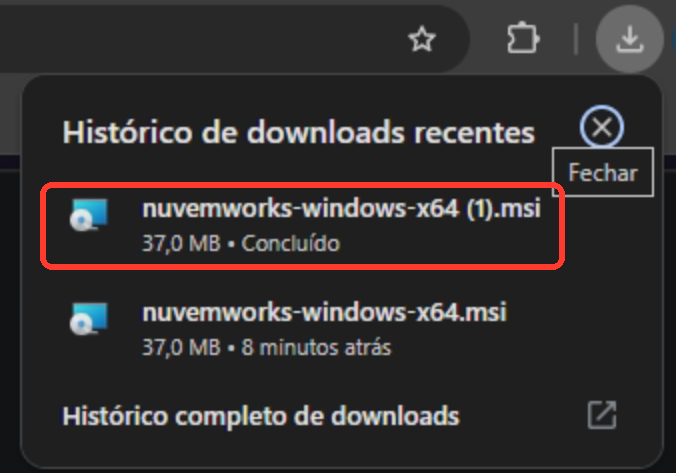
Download and open the installer
Click Download for Windows and open the .msi file in the browser's downloads bar.
- 2
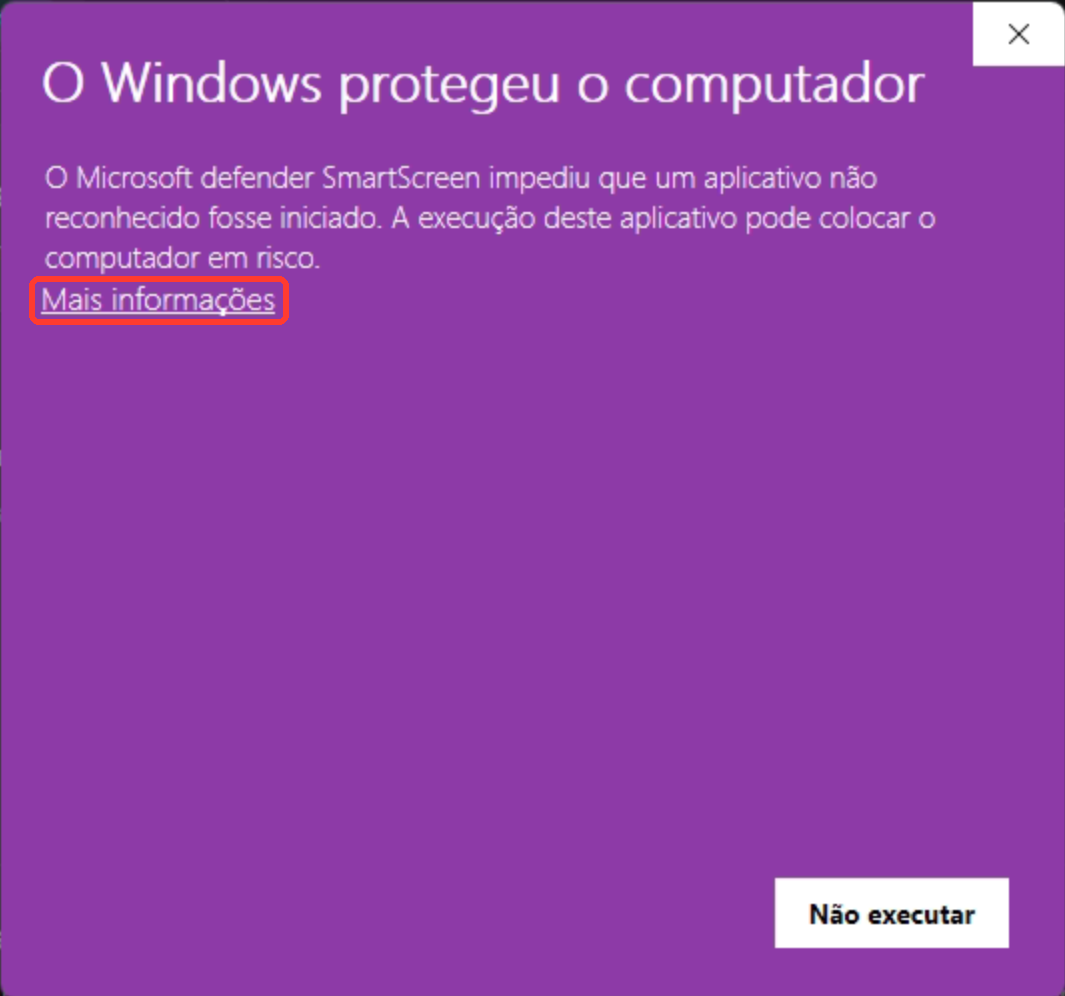
Allow it past the Windows warning
Windows shows “Windows protected your PC”. Click More info.
- 3
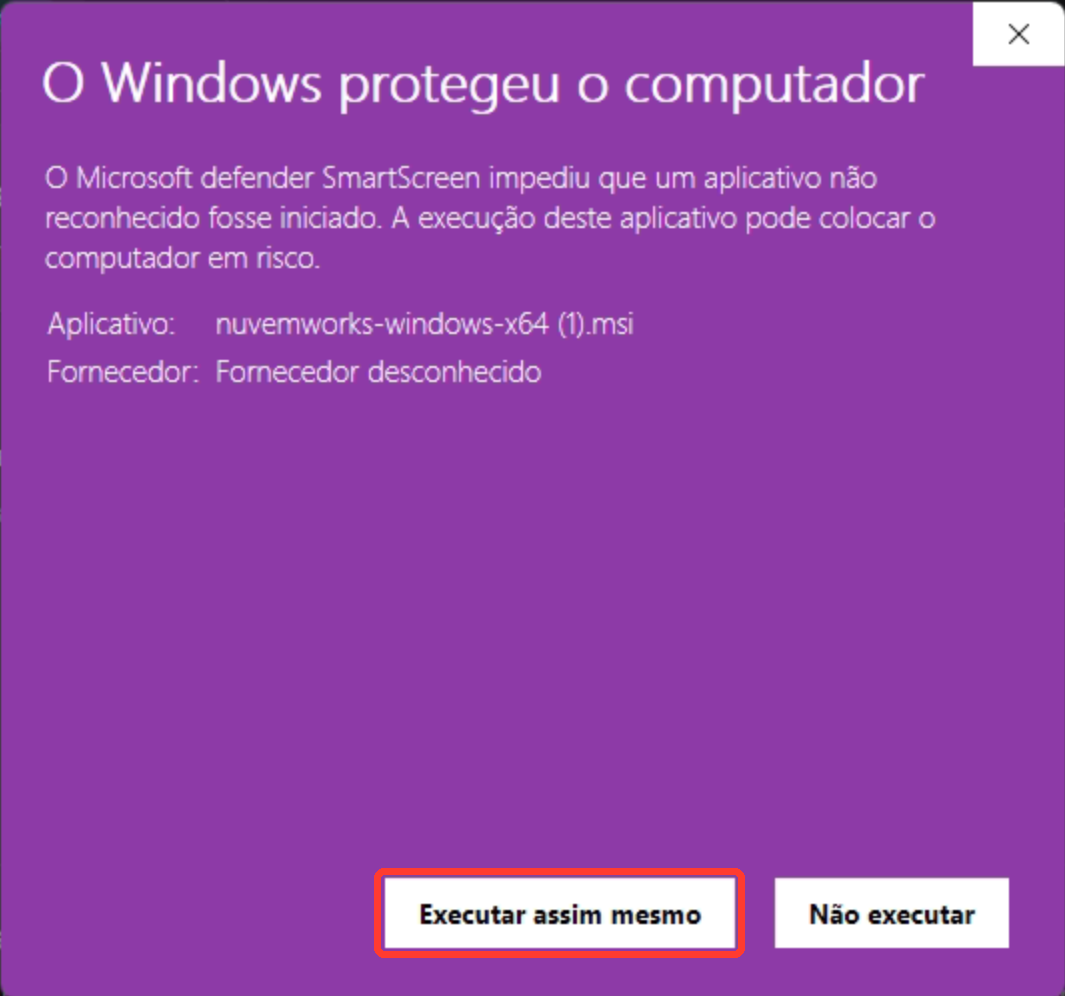
Confirm it should run
On the expanded warning screen, click Run anyway to continue the install.
- 4
Wait for the install
The install runs with no window, in a few seconds, and never asks for an administrator password.
- 5
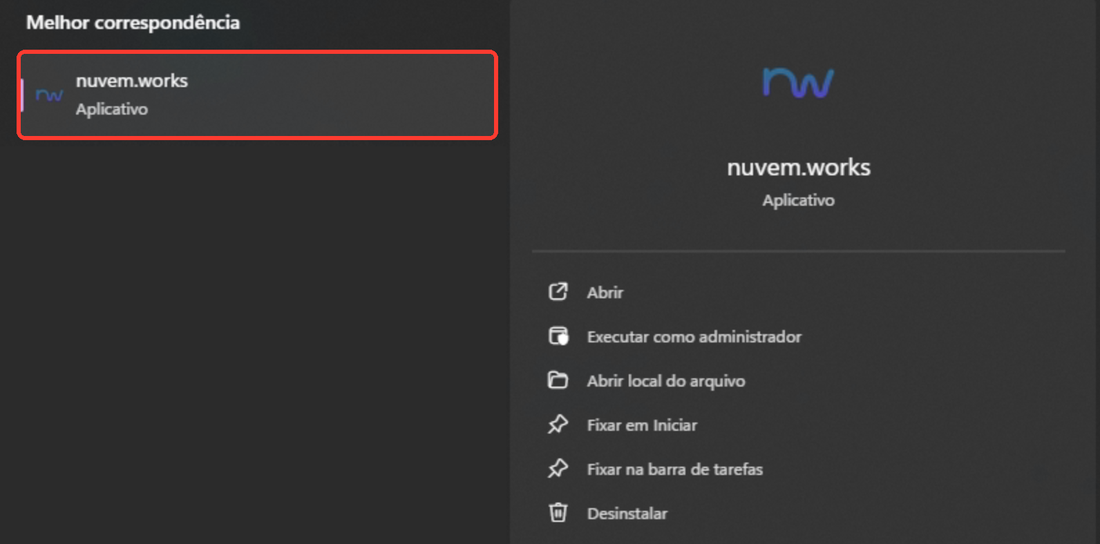
Open and sign in
Search for nuvem.works in the Start menu, open it, and sign in with your account.
macOS
Current version 0.7.2 · macOS 13 or newer, Apple Silicon and Intel
Download for Mac (.dmg)Or with Homebrew
- 1
Download and open the file
Click Download for Mac and open the .dmg file in your Downloads folder.

- 2
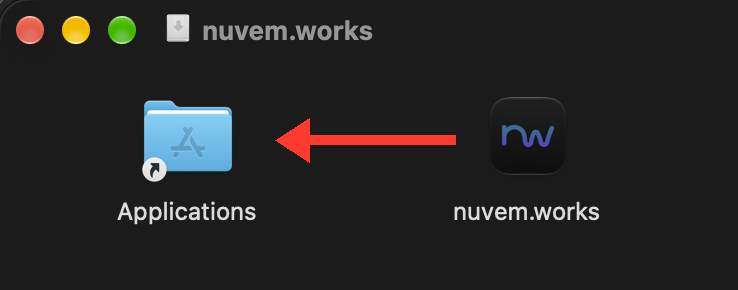
Drag it into Applications
Drag the nuvem.works icon into the Applications folder, then eject the disk.
- 3
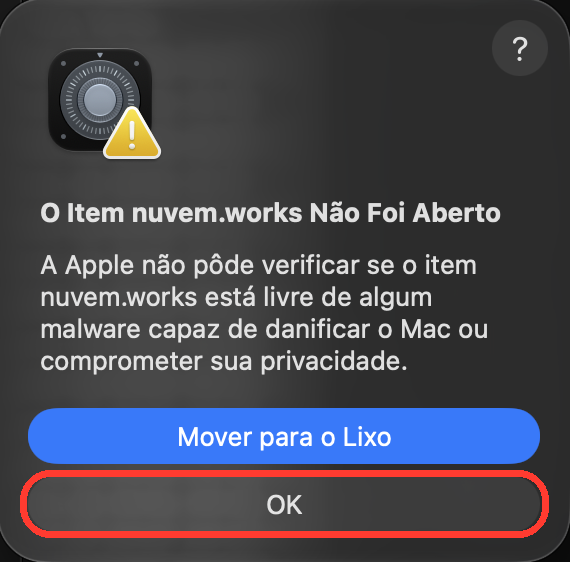
Try opening it once
macOS warns it could not verify the app (Gatekeeper): click OK.
- 4
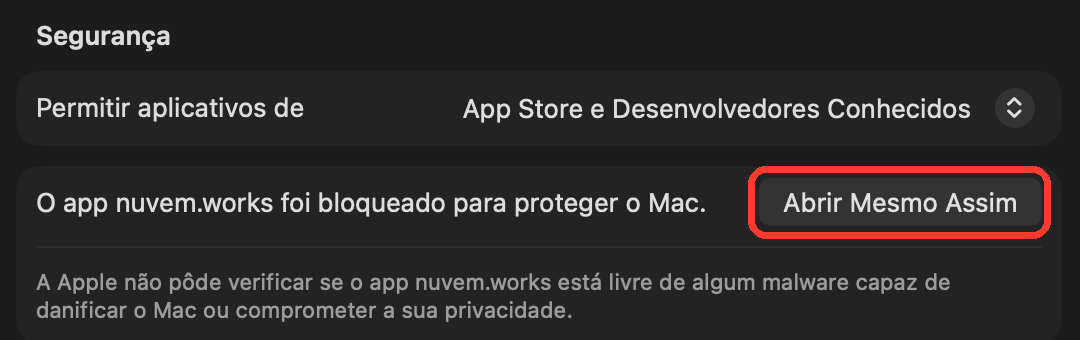
Allow it in Privacy & Security
In System Settings › Privacy & Security, click Open Anyway next to nuvem.works.
- 5
Open and sign in
The app opens and only asks for this once. Sign in with your account.
The Windows (SmartScreen) and Mac (Gatekeeper) warnings show up because the installers don't carry a Microsoft or Apple signature yet; the file comes straight from nuvem.works.